
You can check whether FlightFabric hears you properly before loading MSFS. That’s usually a better time to sort out a microphone than when you’re already sitting on the runway. Start in Settings > Voice in the Windows app. Updated for FlightFabric 0.13.1 on 28 October 2026.
The microphone test checks what the app hears, not whether an aircraft switch responds. FlightFabric is still in alpha, so check commands in the cockpit and read the support notes for your aircraft.
Open Voice settings
Go to Settings > Voice, turn on Enable voice control if it’s off, then choose Change settings. This is also where you can change the choice you made during Setup. The Voice settings link in the Aircraft voice panel opens the same place.
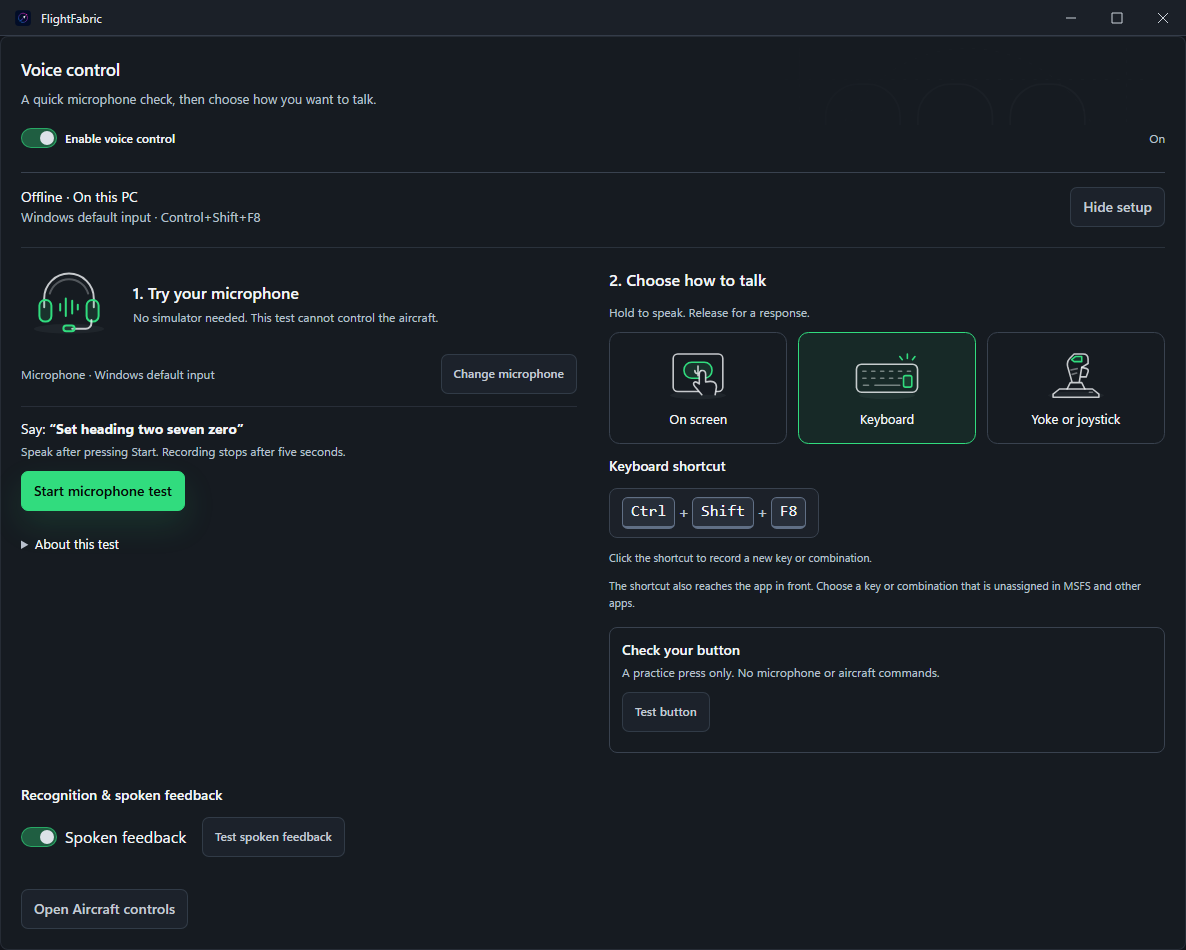
Choose and test your microphone
- Choose Change microphone and select your mic. If you use your usual Windows input, leave Windows default input selected. Can’t see the device? Try Detect microphones, and allow microphone access when asked.
- Select Start microphone test and say “Set heading two seven zero”. Watch the input level while you speak.
- Check the recognised text, then choose Play recording to hear what the microphone picked up. Move the mic or change the input if needed, then use Test again.
The test won’t send a command to the aircraft. You don’t need MSFS running or a push-to-talk shortcut set up. The short recording stays in memory for playback and is cleared when you leave Settings.
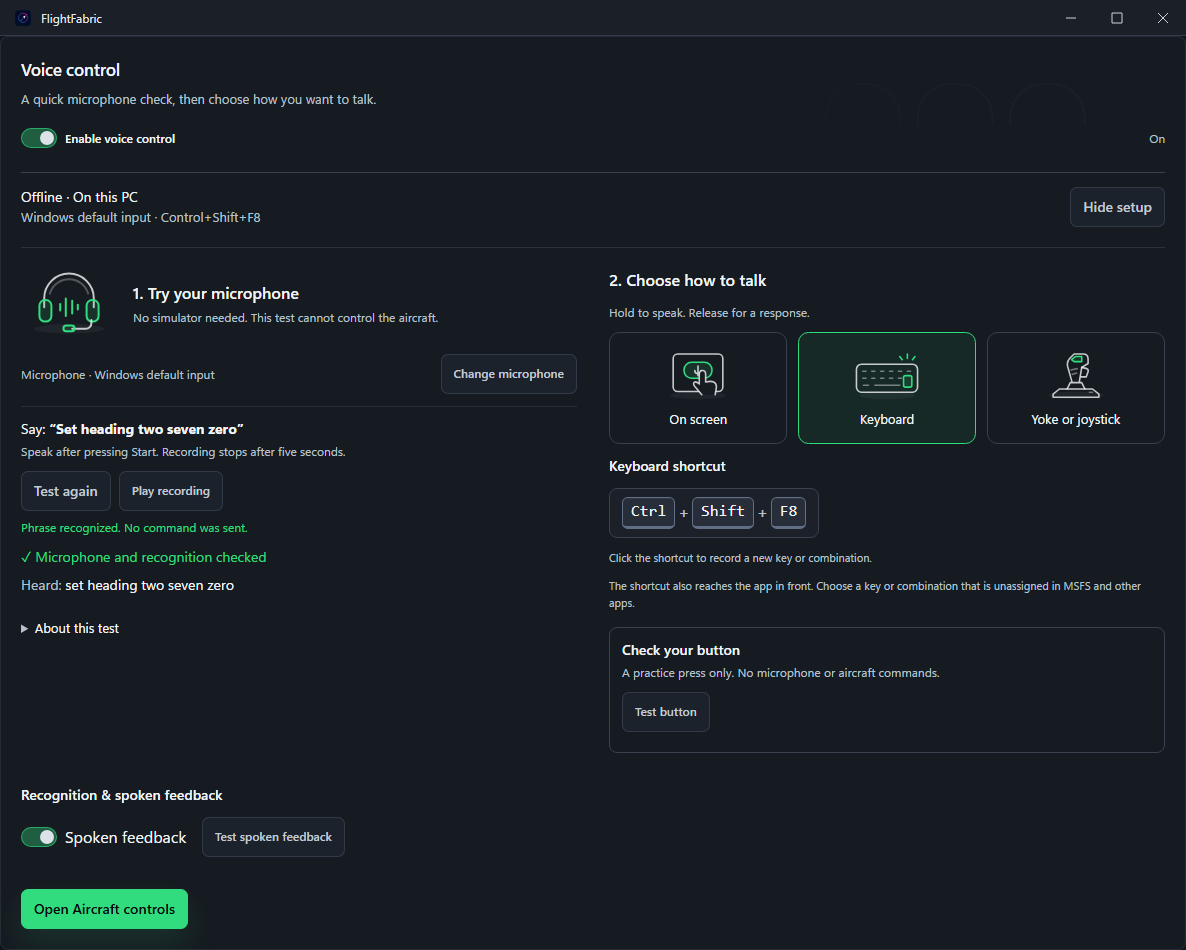
Choose how you want to talk
For a Keyboard shortcut, click the shortcut field, press your key or combination and choose Save shortcut. A single Ctrl or Alt key is fine too. Pick a binding that MSFS and your other add-ons aren’t already using.
For a controller, choose Yoke or joystick, then Set button or Change button. Press and release the button, then choose Save button when it’s ready. The first press may just get the controller ready, so follow the message shown. Use an unassigned button: MSFS and other apps can receive the same press.
If you’d rather click a button, choose On screen and use Hold to talk. Test button lets you practise pressing and releasing without opening the microphone or sending an aircraft command.
To hear replies, turn on Spoken feedback under Recognition & spoken feedback, then choose a Speech engine and Voice. New setups use Windows TTS because it needs less memory. Kokoro offers more natural offline voices, but uses considerably more RAM; an existing Kokoro selection stays saved. Choose Test spoken feedback to hear a sample through your default audio output. Playing the sample doesn’t change the saved preference.
Try it in a flight
Load a flight in MSFS 2024 and wait for FlightFabric to show your aircraft. On the Aircraft page, choose Voice commands beside Find controls. Once voice is ready, hold your shortcut or Hold to talk, wait for it to show that it’s listening, and say one complete command from the list. Release after the last word. Check the recognised phrase and result, then look at the aircraft display.
You can use the MSFS toolbar’s Voice tab during the flight. Microphone selection, recognition testing and shortcut setup are still done in the desktop app’s Settings.
If something isn’t working
- No input level? Check the selected input, your headset’s mute switch and Windows microphone permission. Use Detect microphones and try the voice test again.
- The recording is clear, but the words are wrong? Try one complete phrase at a steady pace and check the recognised text again. Make sure the voice runtime has finished getting ready.
- The on-screen button works, but the shortcut doesn’t? Check that the shortcut was saved and registered. If FlightFabric reports a conflict, choose another binding.
- The test works, but the aircraft doesn’t respond? Check the simulator connection and use a command listed for that aircraft. Remember that the test in Settings never sends aircraft commands.
There are more examples and troubleshooting steps in the voice guide. If your Settings screen is older, download the latest Windows installer.