
A phone or tablet beside your simulator can be useful for checking flight information without constantly switching windows. With FlightFabric, you can display flight information on a second screen and use supported aircraft controls, while keeping MSFS in view on your main monitor.
FlightFabric is still in public alpha, and control testing is incomplete across aircraft and variants. Check the cockpit response and the aircraft support and testing notes.
There’s no separate phone app to install. FlightFabric runs on your PC. Your phone or tablet just opens the dashboard in Safari, Chrome or another web browser.
Before you start
- Open FlightFabric on the PC you use for Microsoft Flight Simulator 2024.
- Connect your phone or tablet to your home Wi-Fi. The PC must be on the same home network; a cable to the same router is fine.
- Keep FlightFabric running while you use the second screen.
Use a private home network you trust. Guest Wi-Fi, hotel networks and mobile data won’t suit this setup, and local dashboard traffic isn’t encrypted. These steps were checked against FlightFabric 0.13.1 on 28 October 2026. The screenshot uses sample data from 0.12.7.
1. Allow your phone to connect
On your simulator PC, select Connect phone from the desktop app’s main menu. This opens Settings → Devices → Connect a phone or tablet. You can also access this page directly through Settings.
- Use FlightFabric on phones and tablets: Enable this option to allow phones and tablets on your home network to access the FlightFabric dashboard.
- Allow aircraft controls on paired devices: This is enabled by default for new setups. Turn it off if you only want to view flight information without controlling the aircraft. Devices must still be paired before they can send aircraft commands.
- Save & Restart: If you’ve changed either setting, select Save & Restart to apply your changes. This will also save any other pending Settings changes. If your settings are already saved, simply select Restart. Do this before starting your flight.
You can leave the default port numbers unchanged unless you’ve previously configured them yourself. No router configuration or port forwarding is required.
2. Return to Connect phone on your PC
Once FlightFabric has restarted, choose Connect phone again. With phone access active, you’ll see the QR code in that Settings section. Prefer typing an address? Expand Enter an address instead.
Leave this page open on the PC. Use the QR code from your own FlightFabric app and keep it private: scanning it can pair aircraft controls when they’re enabled. The short address on its own gives view-only access; controls need separate approval.
3. Scan the QR code or type the address
- Open the Camera app on your phone or tablet.
- Point it at the QR code on your PC screen.
- Tap the link that appears, then let it open in your web browser.
Alternatively, you can enter the address manually. Open your device’s web browser and enter the address shown on the Connect phone page in FlightFabric.
This opens the dashboard in read-only mode. To enable aircraft controls:
- Select Request aircraft controls on your phone or tablet.
- On your PC, open Connect phone and locate the matching six-digit code.
- Select Approve controls to authorise the device.
. Open a flight and use your second screen
Start MSFS 2024 and load a flight. As FlightFabric receives data from the simulator, the information should also appear on your phone or tablet.
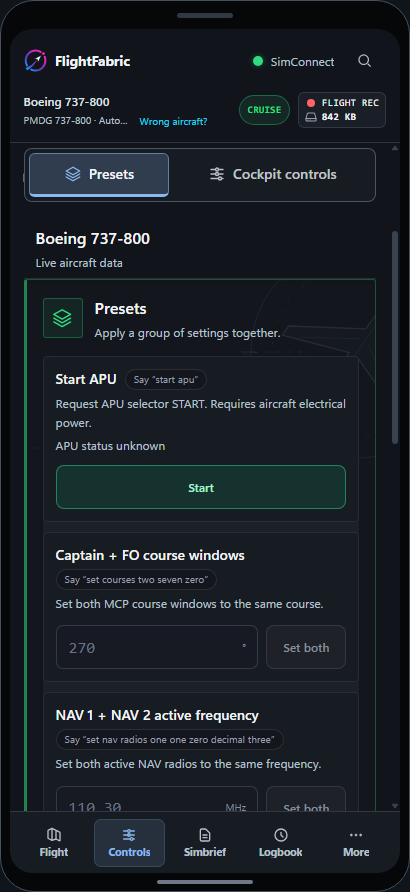
Use the navigation buttons to explore the dashboard. Select Controls to access your aircraft’s Presets, or switch to Cockpit controls to access individual aircraft settings.
On smaller screens, additional views can be found under More.
Do I need to scan again for every flight?
You don’t need to scan the QR code again every time you start a new flight. You can keep the page open or bookmark it, as long as the pairing remains valid.
Pairing works differently depending on how you connect:
- QR code: Pairing remains valid for the current FlightFabric session.
- Six-digit approval code: Pairing remains valid for up to 12 hours. Once it expires, you can request and approve a new code or scan the current QR code.
Restarting FlightFabric resets aircraft control pairing, regardless of which method you used.
Clearing your browser cookies or changing your device’s network address may also require you to pair again.
If your saved address stops working, open the Connect phone page in FlightFabric to find the current address.
If it won’t connect
- The page won’t open: Make sure both devices are connected to the same home network, your phone is using Wi-Fi rather than mobile data, and FlightFabric is running on your PC. Avoid guest Wi-Fi networks, which may prevent devices from communicating with each other. Also check that you’re not connected to a VPN.
- You’ve enabled access, but nothing has changed: Make sure you’ve saved your settings and restarted FlightFabric. Then scan the current QR code to reconnect.
- The dashboard opens, but the controls don’t work: Make sure Allow aircraft controls on paired devices is enabled in FlightFabric on your PC. Then scan the current QR code, or request control access from your device and approve the matching six-digit code on your PC. Keep in mind that not all aircraft or controls are supported.
- Your device still can’t connect to the PC: Check that Windows Firewall allows FlightFabric to communicate over your private home network. Ad blockers or router security settings may also interfere with the connection. Keep Windows Firewall enabled and allow FlightFabric through it rather than disabling your firewall protection.
Once it’s working, leave FlightFabric running on the PC. You can keep the phone or tablet beside you and use it as your second screen for the flight.