
It’s tempting to open a landing report, check the touchdown rate and call it a day. Fair enough, we all like a soft landing. But if you floated halfway down the runway to get it, that number is only telling you so much. Here’s how to read the rest of your FlightFabric debrief.
This guide was checked against FlightFabric 0.13.1 on 28 October 2026. Some details depend on your aircraft, the runway data and what FlightFabric managed to record.
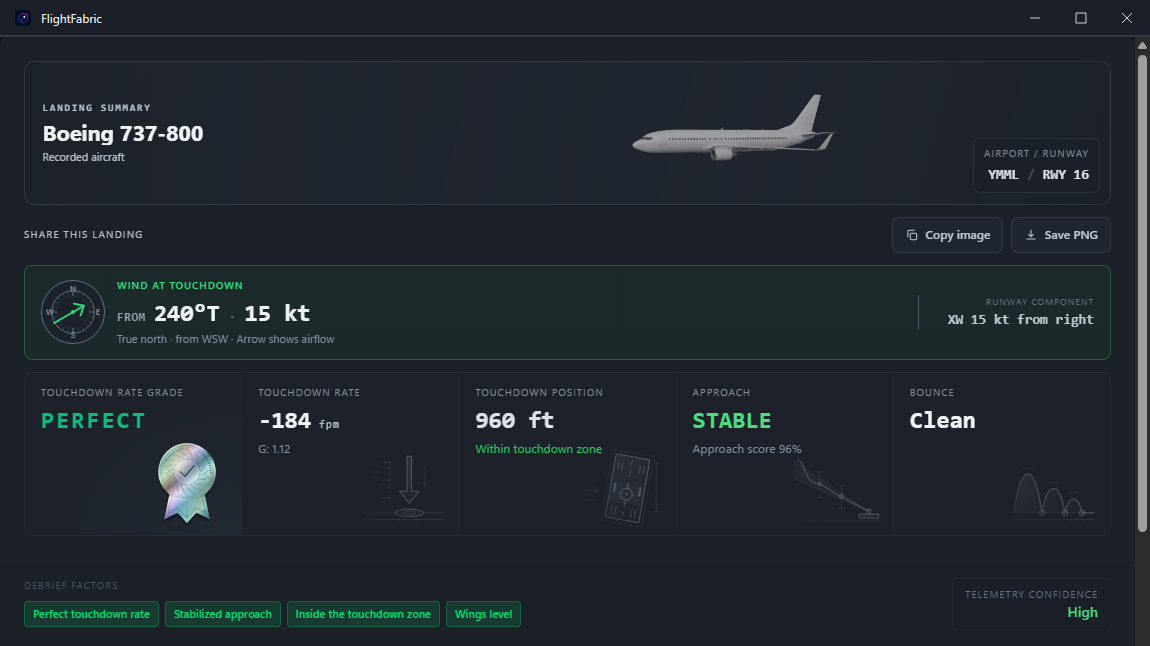
Open your landing report
For your latest landing, go to Overview → Last Landing → Full Report. You’ll need a recorded result before that option is available.
For an older flight, open Logbook, find it under Recent flights and select the landing event. Choose Open Landing Debrief if it’s available.
Start with the touchdown
Touchdown rate is the recorded vertical speed when the aircraft’s wheels contact the runway, measured in feet per minute (fpm). It indicates how firmly the aircraft touched down, but doesn’t necessarily tell you whether the approach was stable or the landing was otherwise well executed.
Where available, also review the touchdown distance, distance from the runway centreline, any bouncing, and the aircraft’s attitude at touchdown.
Remember, a smooth touchdown doesn’t necessarily mean a good landing. It’s entirely possible to achieve a low touchdown rate after an unstable or untidy approach.
Read the warnings, even if the score looks good
The approach percentage score is a starting point. Be sure to read the findings beside it, along with any cautions or warnings.
Some cautions may be marked Recovered. This means the issue was detected during the approach but was subsequently resolved. The original caution will still appear in the detailed report.
For example, a recovered sink rate caution means the descent rate exceeded the specified limit before returning to an acceptable range.
Find out what affected the score
Open Stability Breakdown, if available, and select a criterion to view its details. You’ll see what was assessed, which phase of the approach it applies to, and the rules used to evaluate it.
Keep in mind that FlightFabric doesn’t have access to all the information needed for a precise assessment, such as your calculated landing speeds. Where necessary, it uses approximate values or proxy measurements instead.
FlightFabric uses the assessment rules saved with each recording, where available. These rules may change between versions, so older recordings may contain less detailed assessments.
Check where you touched down
Look at the distance from the landing threshold, and whether it falls within the desired touchdown zone. FlightFabric does not know the performance characteristics of the aircraft or the prevailing weather conditions, runway surface conditions, etc, so it uses reasonable assumptions to grade the TDZ score.
Other measurements
If ground roll information is available, it’s worth reviewing that too. A smooth touchdown doesn’t necessarily mean everything went smoothly afterwards.
Pick something to work on next time
Perhaps you needed more time to configure the aircraft, or there was a sink rate warning you missed during the approach. Review that section of the flight timeline to see what happened.
Rather than trying to improve everything on your next flight, focus on one specific area to practise. Small, targeted improvements are often more effective.